

A new version of your theme is out. Great! It usually means bug fixes, a few new features and better compatibility with the latest WordPress. But a small worry creeps in: will the update break my site?
Not if you follow a simple routine. Let's take the popular theme Garnet as an example. The same steps work for almost any premium theme, and the whole job takes about ten minutes.
What gets updated?
Your site is made of a few separate parts, and each one has its own updates:
- WordPress itself (the core).
- Your theme, which is Garnet here.
- Plugins, such as Garnet Toolkit, Elementor and Contact Form 7.
Garnet keeps its design features in the Garnet Toolkit plugin, so a Garnet update can involve both the theme and the plugin. Update them in the order below and you stay safe.
Step 1: Prepare (the part people skip)
- Make a backup. Back up your files and database with your host's backup tool or a backup plugin. If anything looks wrong afterwards, you can go back in a minute.
- Check where your changes live. An update replaces the theme's files. Anything you changed inside the theme folder (templates, styles) will be overwritten. Changes made in a child theme, and everything you set under Theme Options, the Customizer, Elementor and Menus, are stored elsewhere and are safe. If you edited the theme files directly, copy your changes into a child theme first.
- Read the changelog. The theme's documentation lists what changed in each version. It takes a minute and tells you what to look at afterwards.
- Know your current version. Go to Appearance → Themes, click the theme and note the version number.
Tip: if your site is busy, update at a quiet time and use a staging copy first if your host offers one.
Step 2: Update WordPress and the plugins
Open Dashboard → Updates. WordPress lists everything that has a new version.
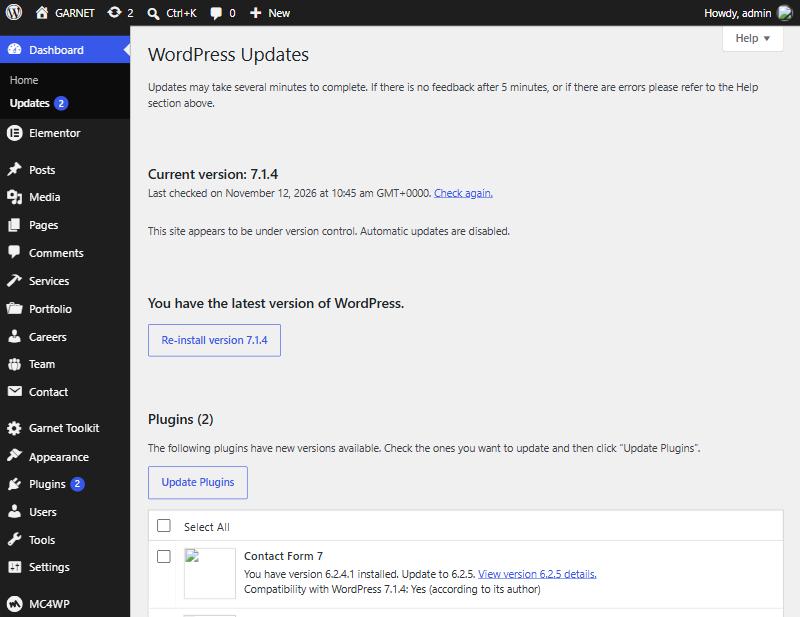
- Update WordPress first if a new version is offered.
- Tick the plugins you want to update and click Update Plugins.
- Wait for each one to finish, then open your site to check that it still loads.
Update one thing at a time if you can. If something breaks, you will know exactly what caused it.
Step 3: Update the theme
There are two ways to do it. Pick the one that suits you.
Option A: Automatically, with Envato Market
Install the official Envato Market plugin and connect it to your Envato account. When a new version of Garnet is released, WordPress shows an update notice for it, just like any other theme. Click Update now and you are done. This is the easiest way, and you only set it up once.
Option B: By hand, with the zip file
- Log in to Envato Market, open your Downloads page and download the new Installable WordPress file only. This is the small theme zip, not the big package with the documentation.
- In WordPress, go to Appearance → Themes → Add Theme → Upload Theme.
- Choose the new zip and click Install Now.
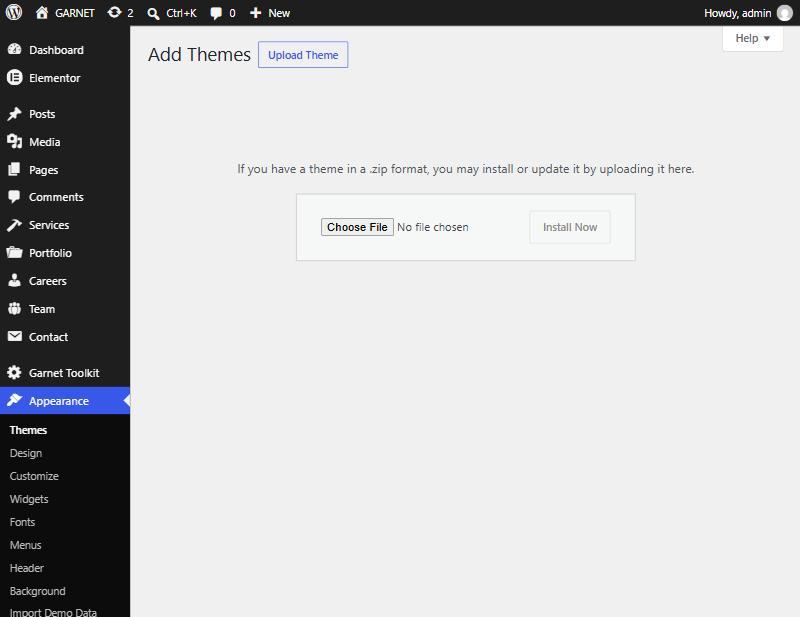
- Because the theme is already installed, WordPress shows a comparison screen with the old and new version numbers. Check that the new one is higher, then click Replace active with uploaded.
Do not delete the old theme first. Replacing it keeps all your settings in place.
Step 4: Update the companion plugin
If the release includes a new Garnet Toolkit, update it the same way you updated the theme by hand. Go to Plugins → Add Plugin → Upload Plugin, choose the new zip, click Install Now and then Replace current with uploaded. Make sure the plugin is still active afterwards.
Step 5: Check your site
- Clear caches. If you use a caching plugin or your host has a cache, clear it. In Elementor, open Elementor → Tools → Regenerate CSS & Data and click the button.
- Look at the key pages. Open your homepage, a blog post, a page with a form and your contact page. Check the menu and the footer too.
- Test a form. Send yourself a message through your contact form.
- Check Theme Options. Your colors, header and footer settings should be exactly as you left them.
If something does not look right
| What you see | Likely cause and fix |
|---|---|
| The page looks old or unstyled | A cache is serving old files. Clear your caching plugin, regenerate Elementor's CSS and refresh with Ctrl+F5. |
| Your own template changes are gone | They were made inside the theme folder, which an update replaces. Restore them from your backup and move them into a child theme. |
| Widgets are missing in Elementor | Garnet Toolkit is not active or needs updating. Check Plugins. |
| The update fails or stops partway | Usually a low memory or time limit on the server. Ask your host to raise memory_limit to 256M, then try again. |
| A white screen appears | Restore the backup, then try again with the plugins updated one at a time. If it keeps happening, contact support. |
Still stuck? We are here to help
If an update does not go as expected, open a support ticket. Tell us the version you updated from and to, what you saw, and add a screenshot of any error message. The more detail you share, the faster we can help.